
Intro
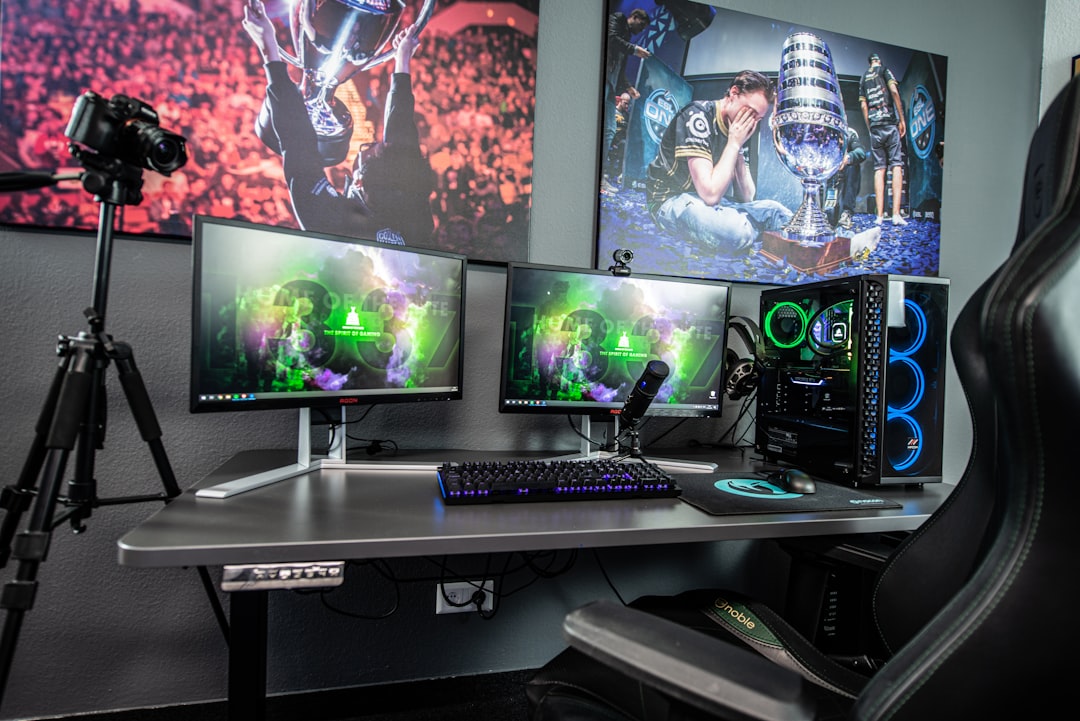
A gaming desk setup that improves focus and comfort doesn’t require a complete room overhaul. Small, intentional choices—about monitor placement, peripherals, lighting and cable routing—add up to less distraction, less fatigue and better play sessions.
This guide gives practical, equipment-focused ideas you can apply today, plus a short checklist and answers to common setup questions. Use the suggestions to shape a workspace that keeps you engaged and comfortable for hours.
1. Start with ergonomics: desk, chair and posture
Comfort begins with how you sit and where your hands and eyes land. Your elbows should be about 90–100° at the desk, feet flat on the floor, and the top of the screen roughly at eye level. Choose a chair with lumbar support and adjustable height and tilt—those adjustments matter more than aesthetics.
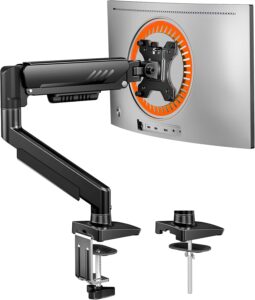
If your monitor height is off, a monitor arm can fix it quickly and reclaim desk space. A stable mount lets you tilt and swivel to reduce neck strain and align multiple screens.
ErGear Single Monitor Arm, Fully Adjustable Monitor Mount
2. Choose the right monitor for focus and immersion
Your choice here shapes both comfort and competitive performance. Ultrawide panels increase horizontal workspace for multitasking and peripheral vision without needing multiple bezels—useful if you stream or keep strategy guides visible while playing.
Ultrawide Gaming Monitors are ideal when immersion and a clean multi-window layout help your concentration.
3. Match refresh rate and resolution to your goals
If competitive play and smooth tracking matter most, prioritize higher refresh rates. A fast panel reduces motion blur and input lag, letting you react sooner and keeping focus sharper during tense moments. For single-player, cinematic titles, a higher resolution may be preferable.
For a balance between responsiveness and clarity, mid/high refresh-rate monitors are the best compromise for general-purpose gaming setups.
144Hz Gaming Monitors offer a practical upgrade for most users who want smoother gameplay without extreme hardware requirements.
4. Peripherals that reduce fatigue and improve workflow
Keyboards and mice are the interfaces you use constantly—invest in options that match your hand size and play style. Mechanical keyboards with tactile switches help accuracy and satisfy feedback needs, while ergonomic mice reduce wrist strain in long sessions.
RGB lighting on a keyboard or mouse pad can be useful beyond aesthetics: soft, customizable lighting that matches in-game cues or ambient brightness reduces eye strain when the room is dark.
RGB Gaming Keyboards are a good choice if you want tactile feel plus configurable lighting to support focus rather than distract from it.
5. Cooling, airflow and hardware placement
Heat impacts performance and comfort. A hot PC or console will throttle, create loud fan noise and radiate warmth toward your legs—disturbing long play sessions. Keep intake/exhaust unobstructed and place your rig off the floor if possible to improve airflow.
Upgrading case fans or adding focused intake/exhaust fans reduces internal temperatures and fan RPMs, which lowers overall noise and helps maintain concentration during extended play.
Gaming PC Cooling Fans are worth considering if your system runs hot or the stock cooling is noisy.
6. Cable management and surface organization
Tidy cables eliminate visual clutter and accidental snags. Use cable trays, velcro ties and grommets to route power and data lines under the desk. Position frequently used devices—controllers, phones, portable drives—within easy reach but off the main surface.
A clear desk surface reduces micro-distractions. Keep lighting, a water bottle and a small notepad nearby; move less-used peripherals to drawers or shelves.
7. Mobile and console integration
If you switch between PC, console and mobile gaming, design docking areas for each device. A stable phone stand keeps mobile titles at eye level, preventing neck strain and enabling easy second-screen use for chat or guides.
Phone Stands For Gaming are handy for multi-device setups where you reference guides, chat apps or companion tools during play.
For console players, a dedicated charging and storage spot for controllers reduces downtime between sessions and keeps the desk uncluttered.
8. Fast storage and quick-swappable content
Slow loading times break immersion and can ruin focus. Use a fast external/portable SSD for game libraries, captures and quick backups. Portable drives also let you move saves or media between systems without fumbling with cables during a session.
Samsung T7 Portable SSD, 2TB External is an example of a compact, fast drive that keeps game load times down and file management smooth.
Checklist: Quick wins you can implement today
- Adjust monitor top to eye level and center it with your chest.
- Set chair height so your feet are flat and elbows near desk height.
- Clear 30–40 cm of usable desk space for keyboard and mouse movement.
- Group cables under the desk and label power/data cords.
- Place frequently used devices (phone/controller/SSD) within arm’s reach.
- Lower ambient lighting or add bias lighting to reduce eye strain.
FAQ
Q: How high should my monitor be?
A: The top of the screen should be at or slightly below eye level so you look slightly downward at the center—this minimizes neck strain.
Q: Are RGB lights distracting?
A: They can be if overly bright or constantly changing. Use static or slow, low-brightness profiles and position LEDs so they provide ambient bias lighting rather than direct flashes in your field of view.
Q: Do I need a 144Hz or higher monitor?
A: If you play fast-paced competitive games, higher refresh rates improve smoothness and responsiveness. For single-player or casual gaming, 60–120Hz may be perfectly fine.
Q: What’s the fastest way to lower desk noise?
A: Reduce fan RPMs by improving cooling efficiency, add rubber pads under noisy peripherals, and declutter hard surfaces that may amplify vibration.
Q: How can I support both console and PC on one desk?
A: Use a compact layout: PC/monitor center, console dock/stand to one side, charging station for controllers, and a dedicated shelf or tray for consoles to keep them off the desk surface.
Conclusion
Focus and comfort come from aligning your setup with how you play: position screens and peripherals for neutral posture, pick monitors and input devices suited to your game types, and remove clutter with smart cable and device management. Start with the checklist above and iterate—small adjustments deliver big improvements in sustained comfort and concentration.
Products Featured in This Article

Samsung T7 Portable SSD, 2TB Extern…
The Samsung Portable SSD T7 is the next standard in external storage. With transfer rates up…
ErGear Single Monitor Arm, Fully Ad…
From the brand New Release Ergear Standing Desk ErGear Dual Monitor Mount Ergear Single Monitor Mount…