
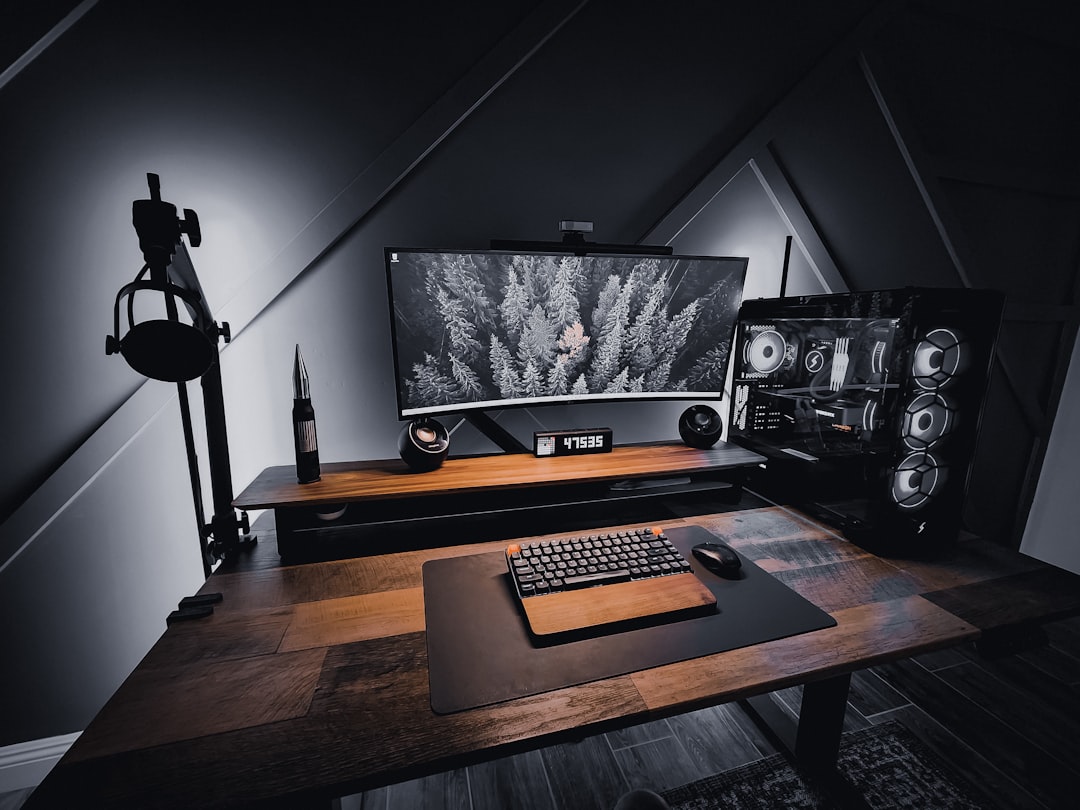
How to Improve Your Gaming Audio Experience
Good audio can be the difference between a forgettable session and an unforgettable one. Clear sound helps you react faster, enjoy atmosphere, and communicate with teammates with less effort.
This guide walks through practical upgrades and setup tips — from choosing the right headset to room treatment, settings tweaks, and voice quality fixes — so you get better, more consistent in-game audio without guesswork.
Understand Your Audio Needs
Start by identifying how you play: competitive FPS, co-op multiplayer, single-player story, or streaming. Latency, positional accuracy, and mic clarity trade off against portability and comfort.
If competitive play and minimal latency matter most, consider wired gaming headsets for the simplest, lowest-latency connection. If you prioritize mobility or couch gaming, different gear and settings will matter.
Choosing the Right Headset
Focus on driver size and type (dynamic vs planar), build comfort, microphone quality, and whether the headset supports true or virtual surround. For immersion and positional cues in modern games, surround sound gaming headsets or headsets with accurate HRTF profiles can improve detection of footsteps and gunfire direction.
Practical selection checklist: try pads for seal and comfort, confirm platform compatibility (PC, console, mobile), and prefer headsets with replaceable cables or detachable mics to extend lifespan.
Optimize In-Game and System Audio Settings
Wrong settings undo hardware advantages. On PC, set your sound device sample rate to 48 kHz when possible and match bit depth to your headset or DAC. Many games offer output modes — choose 7.1/virtual surround for headsets designed for it, or stereo with simulated 3D if that sounds clearer.
For mobile and compact setups, small earbuds can be surprisingly precise if the game’s sound mix is designed for stereo. If you use gaming earbuds, enable low-latency or game mode on the device and check OS-level audio enhancement toggles (surround or EQ) that can conflict with the earbuds’ profile.
Improve Voice Chat and Streaming Quality
Clear voice communication reduces errors and frustration. If you stream or record, a dedicated USB microphone outperforms most headset mics. A reliable option is the FIFINE Studio Condenser USB Microphone, which provides better clarity, less hiss, and consistent levels compared to built-in headset mics.
Tips: place the mic 15–25 cm from your mouth, use a pop filter or foam windscreen, enable noise suppression in your voice software only after getting the raw level right, and monitor with zero-latency monitoring if available.
Desktop Speaker Setup and Room Acoustics
If you prefer speakers, proper placement beats buying bigger ones. Position speakers at ear height, form an equilateral triangle with your listening position, and keep them a little away from walls to reduce bass boom. Small changes in angle and distance can dramatically improve clarity.
For compact or budget setups, the Edifier G1000 gaming speakers are a solid choice for desktop gaming — they offer clear mids for dialogue and positional audio without requiring a large desk footprint. Add an inexpensive rug or acoustic panels behind and beside your speakers to tame reflections and tighten the soundstage.
Reduce Interference, Latency, and Connection Issues
Wireless devices introduce potential interference and latency. Use wired connections for competitive play. When using wireless headsets, ensure the receiver is in line-of-sight and avoid placing it behind metal or USB hubs that can create interference. On consoles, shared wireless bands from controllers and other accessories can create congestion — check platform-specific wireless settings if you experience dropouts.
When gaming on consoles like the Switch, small accessories can change how the console handles audio and Bluetooth. Look for compatible add-ons in the Nintendo Switch accessories category to find dongles or adapters tested for low-latency audio and clean integration with controllers and docks.
Mobile and Portable Audio Tips
For handheld gaming, comfort and stable positioning matter as much as drivers. Wireless earbuds with gaming modes are convenient, but make sure the codec supports low latency. A recommended portable option is the EPOS GTW 270 wireless earbuds, which balance call quality, battery life, and fit for longer sessions.
Keep your device stable to avoid cable pull or accidental disconnects. Using a dedicated phone stands for gaming helps maintain consistent mic and headphone positioning, improves ergonomics, and reduces wear on ports and cables.
Maintenance and Simple Hardware Upgrades
Regular maintenance extends equipment life and preserves sound quality. Clean earcup foam and ear tips, check cables for frays, and replace pads when they lose shape. If you’re looking for incremental upgrades, prioritize: better earpads for comfort, a higher-quality braided cable, or a small DAC/amp for clearer dynamics on higher-impedance headphones.
Many users underestimate how much a better cable or foam pad changes perceived loudness and clarity — these are often lower-cost fixes with big returns.
Quick Checklist
- Decide priority: latency, immersion, or portability.
- Match game and system audio modes (stereo vs surround).
- Choose the right headset or earbuds that match your platform.
- Position mics and speakers correctly; use pop filters for voice.
- Minimize wireless interference; prefer wired for competition.
- Clean and maintain gear; replace pads and cables when needed.
- Test with a variety of games and voice apps to find the best settings.
FAQ
-
Does surround sound always beat stereo?
Not always. Properly tuned stereo can be clearer for some games. Surround or virtual 3D helps with positional cues, but only if the headset and game support it well.
-
Are wired headsets noticeably better?
Wired headsets typically offer lower latency and simpler setup. For competitive play they’re usually preferable; wireless convenience is strong for casual or console play.
-
How can I reduce mic background noise?
Use a directional mic, enable noise suppression in software, position the mic close to your mouth, and remove noisy fans or devices from your immediate area.
-
Will a DAC/amp help my headset?
Yes, especially for high-impedance or audiophile-grade headphones. A DAC/amp improves dynamic range and drive; for typical USB headsets it’s not necessary.
-
What’s the best way to test audio improvements?
Use sound tests with clear positional cues (footsteps, directional gunfire) and record or have a friend evaluate voice clarity. Compare settings systematically after each change.
Conclusion
Improving your gaming audio is a mix of deliberate gear choices, correct settings, and thoughtful placement. Start with the right headset for your playstyle, tune in-game and system options, and address mic and room factors for the biggest practical gains. Small tweaks — a pop filter, a phone stand, or a set of speakers angled correctly — often deliver more noticeable improvement than a major purchase.
Takeaway: identify the single weakest link in your current setup (latency, mic, or room reflection) and fix that first for the fastest wins.
Products Featured in This Article
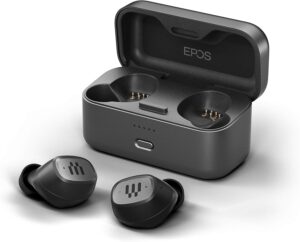
EPOS GTW 270 Wireless Gaming Earbud…
Escape the hum-drum world and enjoy no-compromise audio playback with the compact GTW 270 wireless earbuds….
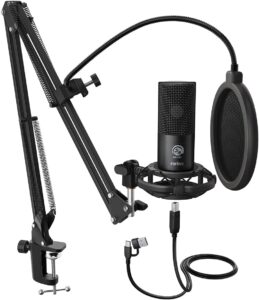
FIFINE Studio Condenser USB Microph…
From the brand FIFINE Recording Series Keep Leveling Up for Your Studio Clarity FIFINE Recording Microphone…
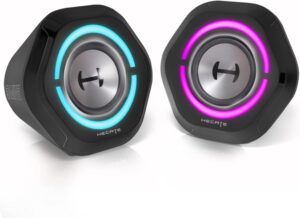
Edifier G1000 Bluetooth 5.3 Gaming …
Product description Stereo Sound Quality:Equipped with advanced sound drivers and reinforced stereo core,this gaming speaker provides…