
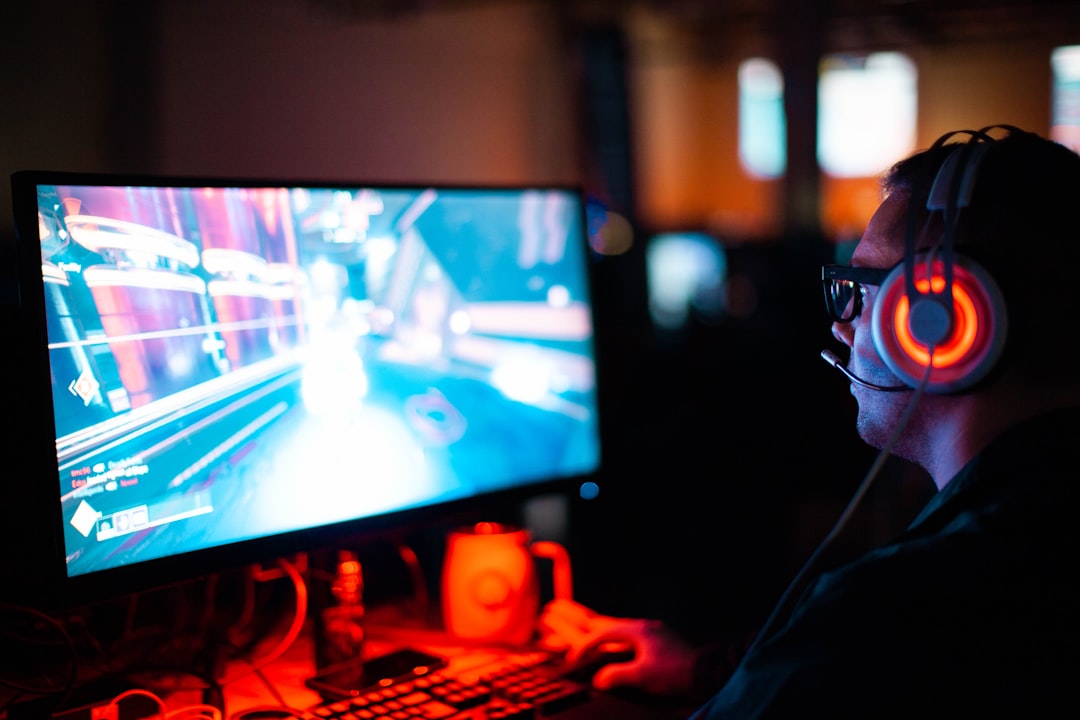
Common Gaming Setup Mistakes and How to Avoid Them
Whether you’re building a new rig or optimizing a small console or mobile setup, common mistakes can undermine performance, comfort, and longevity. This guide walks through the most frequent setup errors and gives practical fixes you can implement right away.
Each section focuses on a specific area — hardware, ergonomics, cooling, peripherals and mobile tips — with clear steps to avoid pitfalls. Read through the checklist at the end and use the FAQ for quick answers to common concerns.
Poor ergonomics and monitor placement
Sitting too low or too high, using the wrong monitor distance, or ignoring chair support causes fatigue and worse aim during long sessions. Align the top third of your monitor with eye level, keep it 20–30 inches away for a single monitor, and use a chair with lumbar support.
If you game on a phone or tablet, a stable mount prevents neck strain and improves controls. Consider a dedicated option like Phone Stands For Gaming to hold devices at a consistent angle and free your hands for controllers or touch play.
Choosing the wrong monitor for your games
Picking a high-resolution panel when your GPU can’t drive it at high frame rates, or selecting a low-refresh monitor for competitive titles, limits your experience. Match monitor capability to your goals: responsiveness for FPS, resolution for single-player immersion.
Competitive and high-FPS gamers should prioritize refresh rate and low input lag. If you play fast-paced shooters, consider a higher refresh option such as 240Hz Gaming Monitors to reduce motion blur and improve responsiveness.
Skimping on cooling and ignoring airflow
Overheating throttles performance and shortens component life. Common mistakes include using too few case fans, blocking vents, or stuffing the case with cables. Good airflow requires a balanced intake and exhaust and unobstructed paths for air to move over components.
If you build or upgrade a PC, plan fan placement and consider quality fans rated for static pressure and airflow. Browse options in the Gaming PC Cooling Fans category to improve case circulation and lower temperatures.
Underestimating the power supply
A weak or cheap power supply causes system instability, random reboots, and can damage components. Calculate required wattage including future upgrades, choose a reputable unit with headroom, and prefer modular designs for easier cable management.
Buy a power supply that matches your build’s peak draw and offers efficiency certification. If you’re replacing or upgrading, look into the Gaming Power Supplies selection to find models with sufficient connectors and protection features.
Slow storage and insufficient RAM
Long load times, stutters in open-world games, and sluggish system booting often come from old HDDs or too little RAM. An SSD for your OS and frequently played titles dramatically reduces load times; additional RAM prevents frame drops during multitasking.
Add a fast drive for your library — NVMe if your motherboard supports it — and ensure you have at least 16GB for modern gaming (32GB if you stream or use heavy background apps). Check solid-state options like Gaming SSD Storage and boost memory with products from Gaming RAM.
Neglecting controllers, docking and charging
Dead controllers mid-session, poorly calibrated sticks, and long charging times ruin gameplay. Keep controllers charged and maintained, and store them in a way that prevents wear on analog sticks and buttons.
For consoles, a dedicated charging solution reduces downtime and clutter. Invest in a proper dock or station — for instance, Controller Charging Stations — to charge controllers cleanly and keep them ready for the next session.
Poor cable management and arranging for airflow
Tangled cables not only look messy, they block airflow, complicate maintenance, and increase the risk of unplugging or damaging components. Route cables behind the motherboard tray, secure with ties, and use shorter cables when possible.
Plan cable paths to keep intake/exhaust channels clear. Group power cables separately from data cables to reduce interference and improve serviceability.
Mobile gaming mistakes: battery, thermal throttling, and peripherals
Mobile players often overlook battery health and device temperature. Playing on the go drains batteries fast; charging from low-quality banks can be slow or unsafe. Use a high-quality power bank designed for mobile gaming to extend sessions safely, for example a Power Banks For Mobile Gaming option.
Phones and tablets can throttle when hot. Reduce temperatures by removing heavy cases during play, using passive vents, or a cooling accessory. Also consider dedicated earbuds or headsets for lower latency and clearer voice chat when playing competitive mobile titles.
Checklist: Quick fixes to apply today
- Adjust monitor height and distance; use a phone stand for handheld devices.
- Match monitor refresh rate to your GPU’s output (consider a 240Hz panel if you play fast FPS).
- Add or reorient case fans to create balanced airflow.
- Upgrade to a quality power supply with headroom for upgrades.
- Install an SSD for games and bump RAM to at least 16GB.
- Use a controller charging station and store controllers properly.
- Organize cables to improve airflow and simplify maintenance.
- Carry a dedicated power bank for long mobile sessions and avoid overheating.
FAQ
Q: How do I choose the right monitor for my GPU?
A: Check average FPS you get in titles you play. If you regularly hit 120–240 fps, prioritize a 120–240Hz monitor; if you average 60–80 fps and want richer visuals, choose higher resolution panels instead.
Q: Is it better to prioritize SSD or RAM first?
A: If your system still uses an HDD, SSD is the biggest immediate quality-of-life upgrade. For stuttering in modern games and streaming, increase RAM to 16–32GB depending on workload.
Q: How many case fans do I really need?
A: A basic effective setup is three fans: two intakes at the front and one exhaust at the rear. Add a top exhaust if you have high-end components or overclocking to remove rising hot air.
Q: What wattage should my power supply be?
A: Calculate your system’s peak draw (many PSU calculators online exist) and add ~25% headroom to allow for component aging and future upgrades. Choose a reputable brand with protection features.
Q: How can I prevent my phone from throttling during long gaming sessions?
A: Lower graphics settings where possible, remove thick cases, play in a ventilated spot, and use cooling accessories or stands to improve airflow around the device.
Conclusion
Fixing common setup mistakes yields immediate gains in comfort, stability, and performance. Start with ergonomics and cooling, then address power, storage, and peripherals. Small targeted upgrades — better fans, a proper PSU, an SSD, a charging station, or a phone stand — deliver disproportionate benefits and make gaming sessions smoother and more enjoyable.