
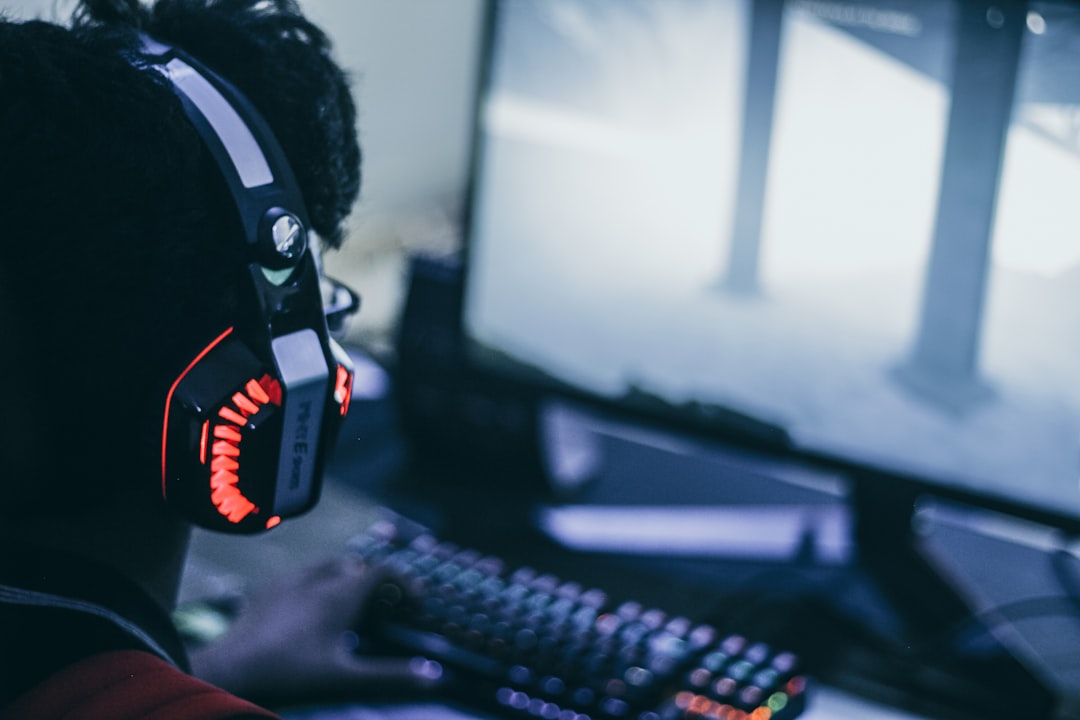
Streaming your gameplay can be simple if you focus on the essentials first: reliable hardware, clean audio, stable network, and a basic streaming layout. This guide breaks down each part into actionable steps so beginners can go live with confidence.
Follow the checklist and the practical sections below to set up a stream that looks and sounds professional without overspending or getting overwhelmed.
Pick a Platform and Define Your Goals
Decide whether you want to stream on Twitch, YouTube, or another service and pick your core content: competitive play, casual co-op, speedruns, or variety. Your goals determine needed features—low latency for competitive play, overlays and scene switching for produced shows, or mobile-centric tools for handheld streaming. If you plan to stream from a console like the Switch, check relevant accessories to make capture and mounting easier: Nintendo Switch Accessories.
PC Hardware Essentials for Smooth Streams
If you’re streaming from a PC, start with a balanced system: a capable CPU, enough RAM, and a modern GPU. The motherboard ties these components together; choosing a reliable one reduces compatibility headaches and allows future upgrades. Shop smart for a board with the ports and expansion slots you’ll actually use: Gaming Motherboards.
Upgrade for Performance: CPU, RAM, and GPU
Streaming and gaming at the same time is CPU- and memory-intensive. If your stream stutters or your game frame rate drops, increasing RAM is one of the most cost-effective improvements. Aim for at least 16 GB for modern streaming; 32 GB helps if you run multiple apps or browser sources: Gaming RAM.
Storage and Capture: Keep Footage Smooth
Local recording, caching, and quick access to media demand fast and reliable storage. An SSD reduces load times for games and recordings and prevents dropped frames when writing files during a stream. Use fast external or internal SSDs for recordings and game libraries: Gaming SSD Storage.
Power and Cooling: Prevent Crashes and Heat Throttling
Long streaming sessions push components for hours. An inadequate power supply can cause instability, crashes, or component damage. Choose a quality unit with enough wattage and headroom for future upgrades. Reliable power keeps your stream live and your hardware healthy: Gaming Power Supplies.
Optimize Your Display and Layout
Your monitor affects how you play and what viewers see if you capture full-screen content. For fast-paced games, higher refresh rates reduce input lag and motion blur, improving both gameplay and stream quality. Consider a monitor that balances refresh rate and resolution for your hardware: 144Hz Gaming Monitors.
Audio: Microphone, Headset, and Clear Voice
Good audio matters more than ultra-high video quality—viewers tolerate lower resolution more easily than poor voice audio. A USB condenser mic with a boom and shock mount gives clear, consistent audio with minimal fuss. If you want a plug-and-play option for honest vocal clarity and a dependable setup, check out a straightforward studio USB mic kit: FIFINE Studio Condenser USB Microphone.
Mobile and Console Streaming Basics
Streaming from phones or handheld consoles is increasingly popular. Keep devices charged and stable: a compact phone stand prevents shaky camera framing, and portable power extends your session when mains power isn’t available. If you plan mobile streams, add a simple mount and a backup power source so you don’t cut out mid-session: Phone Stands For Gaming.
Checklist: Quick Setup Steps
- Choose platform and streaming goals.
- Install streaming software (OBS, Streamlabs, or platform-native app).
- Set output bitrate and resolution based on upload speed.
- Test microphone levels and use noise gate/compressor.
- Set scene layout: game, cams, alerts, and intermission screens.
- Confirm power, cooling, and storage capacity.
- Perform a private test stream and record a short VOD for quality checks.
Practical Tips for Streaming Software and Scenes
Use two primary scenes: “Live Game” and “Break/BRB.” Add a browser source for alerts and a static overlay for webcam + game. Keep OBS or your chosen encoder CPU load below 70% to avoid dropped frames—if it’s too high, lower resolution or enable hardware encoding. Test hotkeys for quick scene switching and muting.
Moderation, Interaction, and Simple Growth Strategies
Engage viewers early and often: acknowledge chat, run polls, and pin important info. Set up basic moderation with chat filters and trusted mods to keep the chat healthy. Consistency beats complexity—regular schedules and short, focused sessions are better than long, unpredictable marathons.
Recording and Repurposing Content
Record highlights locally at a higher bitrate than your stream to create clips and uploads later. These assets feed short-form social posts and highlights that bring viewers back. Use your SSD for these recordings to prevent disk bottlenecks and make editing smoother.
FAQ
- Do I need a capture card to stream consoles? If you want high-quality capture and overlays from a console, a capture device is recommended; however, some consoles support direct streaming via apps.
- What upload speed is required? For 720p60, aim for 3,000–4,500 kbps upload. For 1080p60, 6,000 kbps or higher is ideal. Always leave headroom for stability.
- Is a webcam necessary? No—many successful channels are face-less—but webcams increase viewer connection and are recommended if you’re comfortable on camera.
- How do I reduce stream lag and stutters? Lower output resolution or bitrate, enable hardware encoding (if available), close background apps, and ensure your power and cooling are stable.
- Should I record locally while streaming? Yes—local recordings give you higher-quality footage for uploads and as a backup if the stream drops.
Conclusion: One Practical Takeaway
Start simple: get stable hardware, clear audio, a reliable power source, and a tested streaming layout. Build consistency first, then upgrade components—like RAM, SSDs, or a dedicated mic—based on actual needs and viewer feedback.
Products Featured in This Article
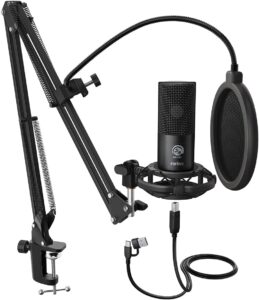
FIFINE Studio Condenser USB Microph…
From the brand FIFINE Recording Series Keep Leveling Up for Your Studio Clarity FIFINE Recording Microphone…