
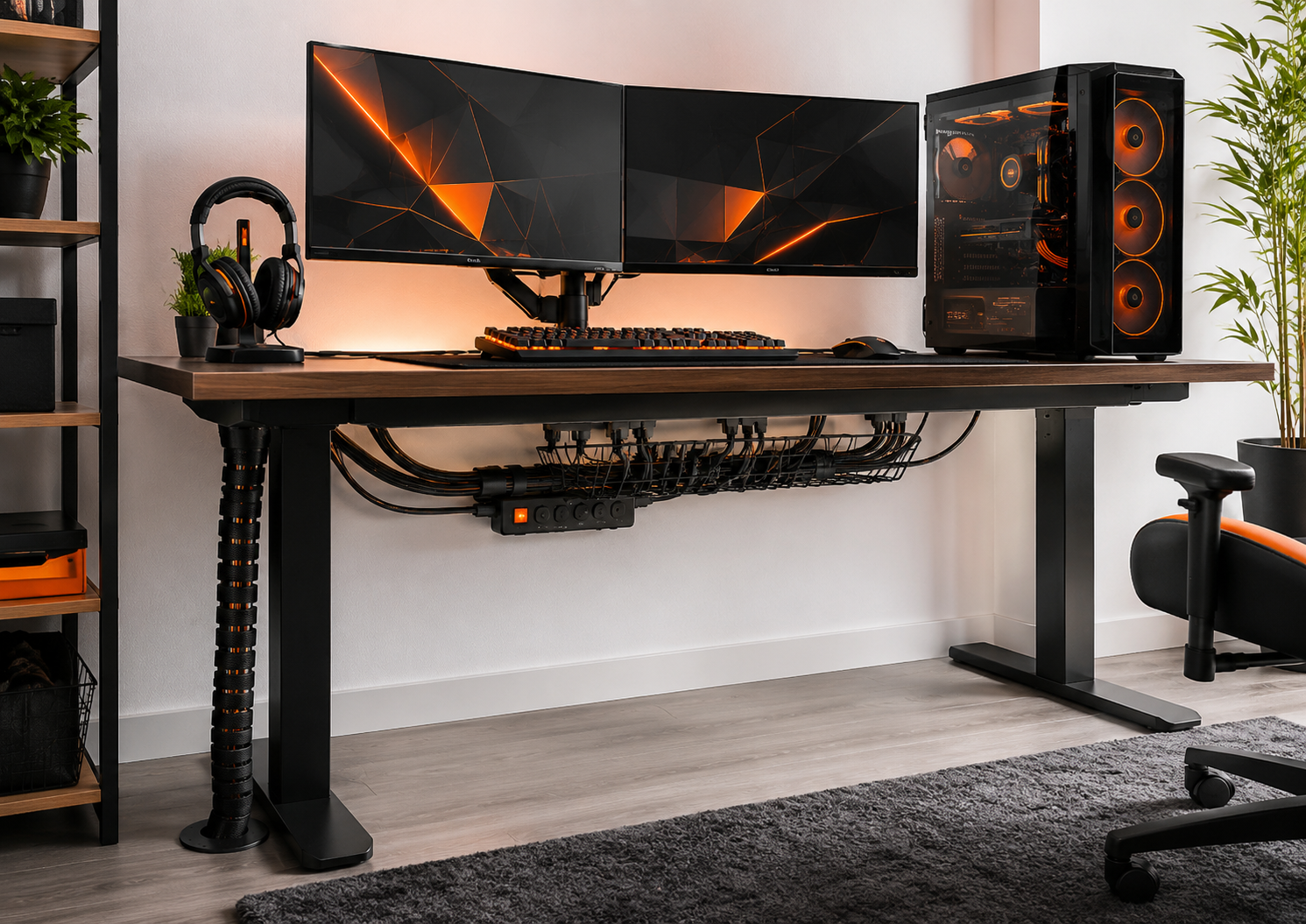
Best Ways to Organize Cables in a Gaming Setup
Cluttered cables make even the best gaming rig look amateur and can cause signal issues, heat buildup, and unnecessary wear on connectors. Organizing cables improves airflow, reduces trip hazards, and makes upgrades and troubleshooting far easier.
This guide gives practical, step-by-step strategies for desktop, console, and mobile gaming setups. Follow these methods to create a clean, reliable, and serviceable wiring layout that lasts.
1. Start by mapping your layout and cable paths
Before buying accessories or cutting zip ties, draw a simple map of your desk, PC, monitor(s), speakers, consoles, and mobile devices. Note where power outlets and surge protectors sit and plan routes that keep cables behind furniture or inside channels. If you’re optimizing for a multi-monitor setup, consider whether a high-refresh display is central to your plan — that affects cable type and placement; see 144Hz Gaming Monitors for common monitor options and their cable needs.
2. Use mounts and stands to reduce surface clutter
Raising phones, tablets, and small controllers off the desk gives fixed points to route charging cables cleanly and reduces cable wear from repeated movement. Choose a stand or mount that has integrated cable routing slots and places the connector at the most natural angle. For small-device setups and mobile gaming rigs, check practical stands designed for gaming phones: Phone Stands For Gaming.
3. Route internal PC cables with the motherboard layout in mind
Inside the case, plan cables around the motherboard to keep airflow clear and connectors accessible. Use the case’s cable-routing grommets and secure PSU cables along the chassis edges. If you’re building or upgrading, pick a board with good connector placement — it makes neat routing much easier. Explore compatible choices when planning a clean build: Gaming Motherboards.
4. Centralize power and backups for consoles and mobile
Use a single, high-quality surge protector or power strip for the desk area to centralize power cords. Keep the strip off the floor (mounted under the desk) and route device charging lines to that point. For mobile gaming or handhelds, a reliable external power source reduces the need for long, messy cables across the desk; consider portable options like Power Banks For Mobile Gaming when you need flexible charging or backup power during sessions.
5. Keep cooling and fan cables tidy
Fans and liquid-cooling pumps add many small cables that can clutter the interior. Group fan cables with a single hub or use the motherboard’s fan headers through a tidy channel to the rear grommet. Secure excess length with Velcro straps so cables don’t interfere with airflow. If you need replacement or additional cooling hardware, choose components that make cable routing predictable and simple; see options for cooling fans here: Gaming PC Cooling Fans.
6. Tame peripheral cables with right-angle connectors and sleeves
Keyboards, mice, and headset cables are daily-use points of movement. Swap straight connectors for right-angle USB or braided cables if the desk edge presses them down. Use a short, attractive cable sleeve or spiral wrap to combine keyboard and mouse lines along the same path. If you’re buying a new keyboard, pick one with detachable or well-placed cables for easier routing; options include RGB Gaming Keyboards, many of which offer removable cables or routed channels.
7. Organize controller charging and console cables
Controllers and docked consoles usually share power locations and USB hubs. Use a small docking station or wall-mounted shelf to keep controller charging cables short and consistent. A dedicated charger also eliminates the mess of multiple USB cords draping over the couch or desk; consider solutions built for convenience: Controller Charging Stations.
8. Manage mobile controller and accessory cables
Mobile controllers, earbuds, and Bluetooth accessories still require periodic charging. Keep a single charging point or small hub near your mobile gaming station and store short cables in a small drawer or mounted pouch to avoid sprawl. If you use dedicated mobile gamepads, route their cables in a repeatable, protected path: Mobile Gaming Controllers.
Checklist: Quick cable-organization essentials
- Map device locations and outlet points before buying accessories.
- Mount surge protector under desk; route all power there.
- Use Velcro straps, not permanent zip ties, for bundle management.
- Prefer detachable or right-angle cables on daily-use peripherals.
- Label both ends of long or similar cables for fast identification.
- Reserve slack—coiled, secured loops—so plugs aren’t strained.
- Use cable raceways or adhesive-backed clips to keep lines off visible surfaces.
FAQ
- Q: How tight should cable bundles be?
A: Bundle securely but not tightly—leave a little give so you can unplug without fighting the ties, and avoid kinks in cables. - Q: Are cable sleeves better than individual clips?
A: Sleeves give a cleaner look for multiple cables running the same path; clips are better where individual cables need separate anchor points. - Q: Can too many cables affect performance?
A: Signal degradation is rare with modern cables, but poor routing can cause interference for analog audio lines and restrict case airflow, so route and separate sensitive lines when possible. - Q: Should I label both ends of a cable?
A: Yes—label both ends. It speeds troubleshooting and prevents unplugging the wrong device during updates or maintenance. - Q: What’s the best way to manage console cables behind an entertainment stand?
A: Use adhesive cable channels or a short raceway along the furniture back, and keep power and signal cables separated when they travel long distances.
Conclusion: One practical takeaway
Start by planning the routes, centralize power, and use non-permanent bundling methods to keep cables organized and easy to change. Small investments—a few Velcro straps, a compact charging station, and adhesive cable channels—deliver a cleaner setup and fewer headaches when you upgrade. Apply these methods consistently and you’ll spend less time untangling and more time gaming.