
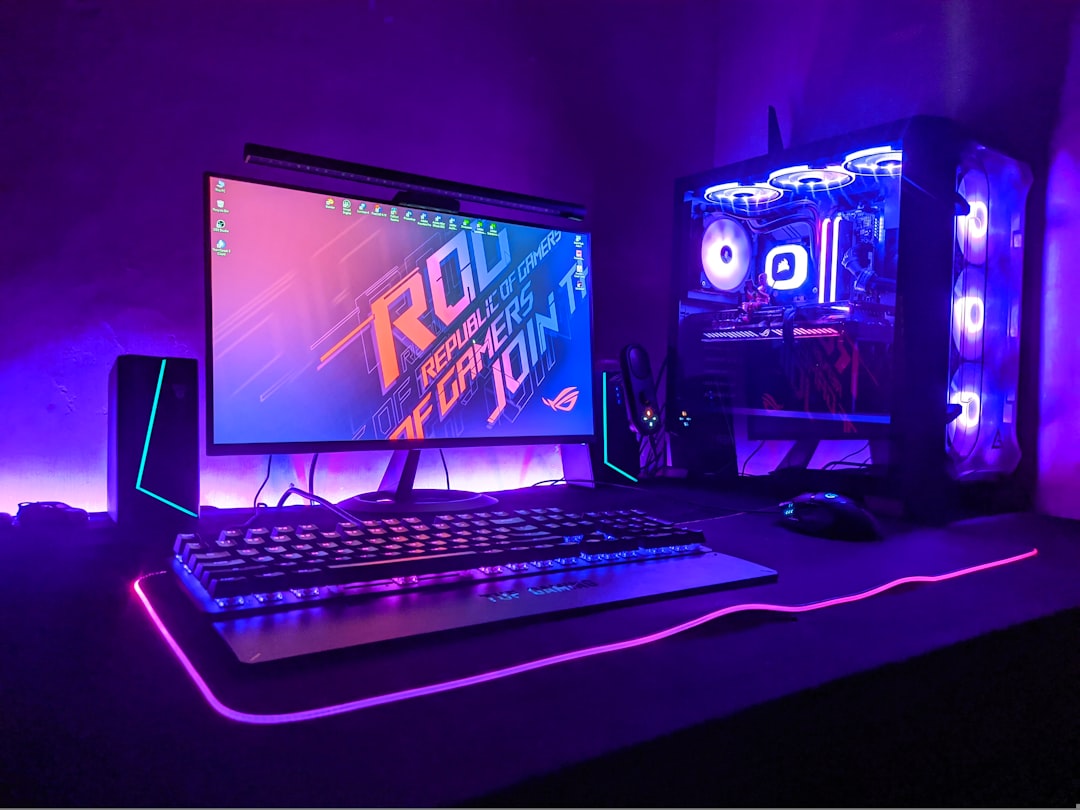
Gaming Ergonomics: How to Stay Comfortable During Long Sessions
Long gaming sessions are part of the hobby—rank climbs, raids, and late-night co-op push runs happen. Comfort isn’t a luxury: it’s a performance and longevity tool. With the right setup and habits you can reduce fatigue, stay focused, and enjoy more consistent play.
This guide covers practical, equipment-forward and habit-focused strategies you can implement today, including monitor positioning, input choices, breaks, and small accessories that make a big difference.
Posture and Chair Basics
Start with your base: the chair. Sit with feet flat, knees at about 90 degrees, and hips slightly higher than your knees. Keep your spine supported—lumbar support or a cushion helps—and avoid slouching forward toward the screen. If you game on a sofa or bed, bring your knees up so your lower back keeps a natural curve.
Adjust your seat depth so the backrest supports your lumbar region and leaves 2–3 inches between the front edge of the chair and the back of your knees. Armrests should support your forearms lightly; they should not force your shoulders to shrug.
Monitor Placement and Eye Comfort
Monitor height and distance shape neck and eye strain. Center the top third of your screen at or slightly below eye level, and sit about an arm’s length away from a single monitor. If you use wider displays to keep more information in view, position them so you don’t have to rotate your neck continuously.
Upgrading to a larger format like an ultrawide panel can reduce head turns when used correctly; they work best when the curve and size allow your eyes to scan rather than your neck to swivel. Consider an Ultrawide Gaming Monitors option if your playstyle benefits from broader horizontal real estate.
For precise monitor positioning and to avoid awkward neck angles, a flexible mount is one of the most effective additions. The ErGear Single Monitor Arm makes height, tilt and rotation quick to fine-tune and saves desk space.
Keyboard, Mouse and Hand Positioning
Your forearms should be roughly parallel to the floor and wrists neutral. If you notice wrist bending, raise or lower your keyboard and mouse to a comfortable plane. A slightly negative keyboard tilt (front higher than back) can reduce wrist extension for many players.
For sustained comfort consider an ergonomic mouse that reduces ulnar deviation and wrist pronation. Vertical and angled options help keep the wrist in a more natural posture—one ergonomic option to evaluate is the Lekvey Ergonomic Mouse, which is designed to reduce palm rotation and ease grip strain.
Controllers and Mobile Gaming Setup
If you play on a phone or tablet, controller choice and phone positioning matter. Controllers built for handheld play can reduce thumb fatigue and provide better ergonomics than touchscreen-only input. Browse dedicated hardware like Mobile Gaming Controllers or Tablet Gaming Controllers to find forms that fit your hand size and grip style.
Keeping your device propped at eye level prevents tucking your chin and reduces neck strain—simple phone stands are a big improvement. If you game with your phone on a desk or lap, try a sturdy Phone Stands For Gaming that lock the angle and free your hands to hold a controller comfortably.
Headphones, Audio and Heat Management
Comfortable headsets reduce pressure on the crown and ears. Use padded ear cups and an adjustable headband so the weight distributes evenly. If you play for hours, lighter headsets or earbuds minimize heat buildup and ear fatigue.
Good audio can also reduce cognitive strain by making in-game cues easier to parse. Consider higher-quality surround options; investing in comfortable over-ear gear from the Surround Sound Gaming Headsets category can improve clarity while keeping long sessions pleasant.
Cable, Power and Peripherals Management
Unruly cables push you into awkward positions and distract. Route cords so they don’t tug at controllers or force devices into uncomfortable angles. Where practical, switch to wireless peripherals but maintain easy charging options to avoid mid-session interruptions.
For console players, a charging dock keeps controllers topped up and prevents the need to hold a controller while it’s plugged in. A tidy station, like options found under Controller Charging Stations, reduces trips to the couch or table and removes one more friction point from long sessions.
Breaks, Microbreaks and Movement
Microbreaks every 20–30 minutes—30–60 seconds of shoulder rolls, neck stretches, and hand shakes—significantly reduce tension buildup. Schedule a longer break every 60–90 minutes: stand, walk, and do 3–5 minutes of active mobility (leg swings, hip circles). These resets improve circulation, focus, and reaction time.
Use timers or apps that prompt movement. Even short hydration or snack breaks refocus attention and prevent the “one-more-match” trap that extends sessions past healthy limits.
Lighting, Contrast and Display Settings
Ambient lighting reduces eye strain compared to playing in total darkness. Position a bias light behind your monitor to reduce contrast between screen and room. Adjust in-game brightness to preserve detail without forcing your eyes to overwork in dark scenes.
Refresh rate and resolution affect visual comfort. Faster panels can reduce motion blur and perceived strain—if your setup supports it, consider upgrades like high-refresh monitors. If competitive play is your priority, check 144Hz or 240Hz options for smoother motion, but balance refresh rates with comfortable brightness and scaling to avoid small text and icons that force squinting.
Checklist: Quick Setup Actions
- Adjust chair so feet are flat and lumbar supported.
- Top of screen at or slightly below eye level; use a monitor arm if needed.
- Keep forearms parallel to the floor; try an ergonomic mouse.
- Use a controller or controller stand for handheld/mobile comfort.
- Set timers for microbreaks every 20–30 minutes.
- Use ambient/bias lighting and set comfortable screen brightness.
- Tidy cables and use a charging station for controllers.
FAQ
- How often should I take breaks during long gaming sessions?
Take 20–30 second microbreaks every 20–30 minutes and a 5–15 minute break every 60–90 minutes. Short, frequent movement is more effective than a single long break.
- Is a gaming chair necessary?
Not strictly. A supportive chair with good lumbar support and adjustable height is more important than the “gaming” label. Add cushions or a lumbar pillow if needed.
- Are wireless controllers better for ergonomics?
Wireless controllers reduce cable-related awkwardness and increase freedom of movement; pair them with proper charging options like Controller Charging Stations to avoid mid-session battery problems.
- What monitor type is best for long sessions?
Monitors with adjustable stands, good color accuracy, and flicker-free backlights are best. Larger, curved, or ultrawide displays can reduce neck movement—see Ultrawide Gaming Monitors if you need more horizontal space.
- How can I reduce hand and wrist pain?
Ensure neutral wrist alignment, keep forearms supported, and consider ergonomic mice like the Lekvey Ergonomic Mouse. Regular hand stretches and breaks are essential.
Conclusion
Comfortable gaming is a mix of the right hardware, thoughtful setup, and disciplined habits. Small upgrades—like a monitor arm, ergonomic mouse, or a phone stand for handheld play—plus regular microbreaks will keep you playing longer and feeling better. Start with one change this week and build from there.
For quick ergonomic upgrades, browse dedicated options like Mobile Gaming Controllers, Tablet Gaming Controllers, and comfortable audio from Surround Sound Gaming Headsets to tailor your setup to longer, healthier play sessions.
Products Featured in This Article

Lekvey Ergonomic Mouse, Vertical Wi…
Product description WIRELESS OPTICAL VERTICAL ERGONOMIC MOUSE – HEALTHY COMFORT MOUSE Add to Cart Add to…
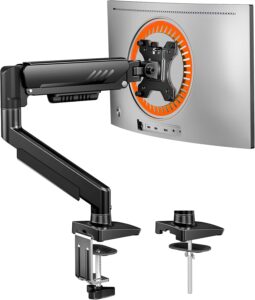
ErGear Single Monitor Arm, Fully Ad…
From the brand New Release Ergear Standing Desk ErGear Dual Monitor Mount Ergear Single Monitor Mount…