
How to Choose the Best Display Settings for Better Gameplay
Good display settings make the difference between a distracting experience and consistent, repeatable performance. Whether you play competitively or enjoy cinematic single-player games, the right balance of resolution, refresh rate, and visual quality keeps you responsive and immersed.
This guide gives practical steps to pick display settings that match your hardware and gaming goals, plus quick tweaks to squeeze more performance without sacrificing clarity.
1. Know your hardware ceiling before changing anything
Start by checking your GPU, CPU, VRAM and monitor specifications. If your system struggles to hit a target frame rate, lowering visual settings is more effective than forcing a higher resolution. If you plan an upgrade focused on visuals, prioritize components that deliver noticeable in-game improvements like faster memory and storage.
For upgrades that improve sustained performance in modern titles, consider improving your system memory—Gaming RAM—so large texture pools and background tasks don’t throttle frame delivery.
2. Choose resolution by performance targets
Pick a resolution that your GPU can sustain at the frame rate you want. Common approaches:
- Competitive shooters: 1080p at high frame rates (144+ fps) for input responsiveness.
- Balanced play: 1440p for a good trade-off between image clarity and performance.
- Cinematic single-player: 4K for maximum detail if your GPU supports it.
If you want true high-detail visuals and your build can handle it, look at high-resolution panels like 4K Gaming Monitors. If not, scale back resolution or use upscaling tech to maintain frame rate.
3. Match refresh rate to your frame rate goals
Refresh rate defines how often the monitor updates; frame rate is how often the GPU renders. Aim to keep the average FPS close to your monitor’s refresh rate for smoothness. For fast-paced, twitch-based titles, favor higher refresh rates over maximum graphical fidelity.
If you target ultra-smooth gameplay and your hardware can deliver, consider fast panels such as 240Hz Gaming Monitors. If your GPU can’t sustain high FPS, cap your frame rate and tune graphics to reduce variance.
4. Use resolution scaling and smart upscaling
Render scale (or dynamic resolution) reduces the internal rendering resolution while keeping UI and HUD sharp, trading fewer pixels for higher FPS. Modern upscalers (NVIDIA DLSS, AMD FSR) let you retain visual quality at lower render resolutions.
Fast storage also helps with texture streaming and pop-in when you increase detail settings—fast drives such as Gaming SSD Storage reduce stutters and loading pauses on texture-heavy maps.
5. Adjust color, contrast and HDR for visibility
Beyond sharpness and frame rate, visibility in dark areas or across bright scenes can affect gameplay. Raise gamma slightly and increase contrast to reveal enemies in shadows, and reduce film grain and motion blur for clarity.
If you prefer superior contrast and deep blacks for improved visual fidelity, consider premium panels like the INNOCN 27″ OLED 2K QHD, which deliver higher dynamic range and quicker pixel response for clearer detail in dark scenes.
6. Consider aspect ratio: ultrawide and curved monitors
Ultrawide panels expand horizontal field of view and increase immersion—useful in racing, RPGs, and strategy games where peripheral vision matters. Curved monitors reduce eye movement across wide screens and can make tracking targets easier in some scenarios.
If you want a wider view and improved immersion without sacrificing refresh rate options, check out Ultrawide Gaming Monitors. Use FOV and HUD scaling in-game to avoid stretched or obstructed UI elements.
7. Keep thermals and stability in check
Consistent frame rates depend on stable CPU/GPU clocks. Thermal throttling drops performance and increases frame-time variance. Improve airflow, clean dust, and consider higher-performance case fans or CPU coolers.
Quality case and CPU fans help maintain steady performance under load—browse options for effective cooling like Gaming PC Cooling Fans.
8. Mobile and console display tips
On mobile devices and handheld consoles, viewing angle and mounting affect perceived input lag and comfort. Use stands or mounts to keep the device steady and at a consistent angle for faster, more accurate inputs.
If you play on phones or small tablets, a stable mount reduces hand movement and improves reaction—consider accessories such as Phone Stands For Gaming to position your device at the ideal viewing height and angle.
Small checklist: Quick display-setting adjustments
- Set target FPS (e.g., 60 / 120 / 144 / 240) and tune settings to hit it consistently.
- Lower shadows, post-processing and reflections first to gain FPS without huge visual loss.
- Use render scale/upscaling before dropping base resolution.
- Disable motion blur and film grain for clarity.
- Calibrate brightness/gamma to reveal details in shadows.
- Maintain thermals: monitor temps and improve airflow with quality Gaming PC Cooling Fans if needed.
Conclusion
Choose display settings by matching them to a clear goal: responsiveness, visual fidelity, or a balance. Start by establishing a frame-rate target, tune the heaviest impact settings first, and use scaling/upscaling plus hardware upgrades only when necessary. Small, focused changes yield the best real-world improvements.
FAQ
-
Q: Should I prioritize resolution or refresh rate?
A: Prioritize refresh rate for competitive play (higher Hz) and resolution for single-player or cinematic experiences. Pick the one that aligns with your playstyle and hardware capability.
-
Q: How much difference does a faster SSD make?
A: A fast SSD improves load times and texture streaming, reducing pop-in and stutters—consider upgrading to a Gaming SSD Storage if you experience those issues.
-
Q: Can I get competitive advantage from a curved or ultrawide monitor?
A: Ultrawide increases horizontal FOV and immersion; curved screens help reduce eye strain on wide panels. They can aid situational awareness in some genres but aren’t always allowed in competitive tournaments.
-
Q: My FPS fluctuates a lot—what next?
A: Reduce CPU/GPU-intensive settings (shadows, particles), cap FPS to reduce variance, and verify thermals. If fluctuations persist, improving memory or cooling can help—consider upgrades like Gaming RAM and better fans.
-
Q: Is HDR worth enabling?
A: HDR can boost visual clarity in bright and dark areas on supported panels, but inconsistent HDR implementations can wash out UI or reduce visibility. Test with your favorite game and compare with SDR.
Products Featured in This Article
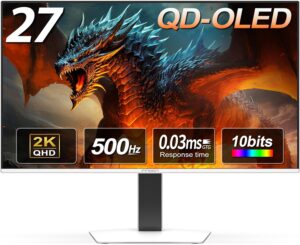
INNOCN 27″ OLED 2K QHD 2560 x…
From the brand Innovative Monitors Make Better Ultrawide Curved Monitors New Launches Mini LED + OLED…