
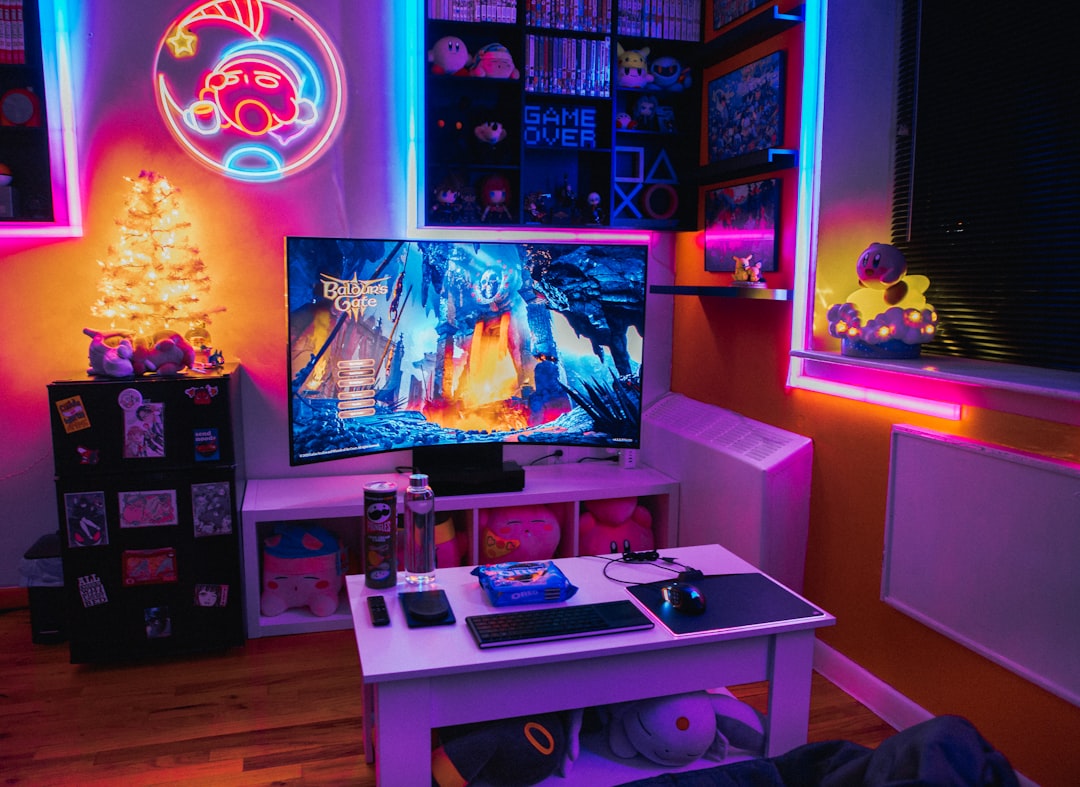
The Ultimate Guide to Creating a Comfortable Gaming Room
Designing a comfortable gaming room is about more than aesthetics — it’s a deliberate mix of ergonomics, reliable hardware, and a setup that reduces fatigue so you can play better for longer. This guide walks through practical choices you can make, from displays and seating to cooling and cable management.
Follow these recommendations to build an efficient, comfortable space whether you’re a casual player, a competitive gamer, or someone who streams regularly. Where useful, I’ll point to specific accessories that help solve common setup problems.
Plan your layout and prioritize ergonomics
Start with the basics: desk height, chair adjustment, screen placement and reach. Your monitor should be roughly at eye level with the top third of the screen aligned to your sightline and about an arm’s length away. If you have a single monitor or multiple, use an adjustable mount to reduce neck strain and free desk space — a dedicated monitor mount streamlines alignment and cable routing.
Consider an adjustable mount like the ErGear Single Monitor Arm to get the correct height and viewing angle without fiddling with risers.
Choose the right display for your play style
Displays define the visual comfort of your room. Competitive FPS players benefit from high refresh rates and low latency, while single-player and immersion-focused players often prefer larger, higher-resolution panels. Ultrawide monitors increase field of view for racing, strategy, and immersive titles, while curved screens can reduce eye strain by keeping focal distance consistent.
If you’re considering a broader field of view and cinematic immersion, explore Ultrawide Gaming Monitors for options that change how you experience games.
Desk, chair, and posture: small changes, big returns
Invest in a chair with adjustable lumbar support and armrests. Your desk should allow for a neutral wrist position when typing or using a controller. For desk height, you want forearms parallel to the floor and shoulders relaxed. Add a footrest if your feet don’t sit flat to reduce lower-back tension.
Arrange commonly used items — controllers, mouse, keyboard — within a comfortable reach zone to avoid repeated extended reaches that create strain over long sessions.
Input devices: choose comfort and precision
Your mouse and pad directly affect wrist comfort and control. Lightweight mice reduce fatigue during long sessions and improve flick precision in fast genres, while a roomy, low-friction pad helps with consistent tracking. Pick an input combination that matches your grip and movement range.
If you value speed and low effort, consider a category dedicated to Lightweight Gaming Mice to reduce wrist strain and improve responsiveness.
Audio, lighting, and acoustics for long sessions
Good audio increases immersion and gives competitive advantages with spatial cues. Use closed-back headphones or a headset with comfortable earpads for marathon sessions. Add adjustable, indirect lighting behind your monitor to reduce contrast and eye strain. Soft acoustic panels or fabric rugs reduce echo; place absorption near reflective surfaces rather than crowding the room.
Cooling and power: keep hardware and devices reliable
Heat and unstable power are two common comfort killers. Make sure your PC or console has good airflow and is not tucked into tight cabinets without ventilation. For mobile gaming areas or when devices need extra runtime, portable power and cooling accessories keep sessions smooth and prevent throttling.
For reliable portable energy and extended mobile play, check options in Power Banks For Mobile Gaming.
Mobile devices: keep them cool and stable
If your gaming room includes mobile gaming, mounting and thermal control matter. A stable stand keeps the phone at a comfortable viewing angle and reduces hand fatigue. If you run graphic-heavy mobile titles, a cooling attachment prevents thermal throttling and uncomfortable device temperatures during longer sessions.
To help with sustained performance and keep devices comfortable to hold, consider accessories like Phone Cooling Fans For Gaming.
Console area and charging convenience
Designate a shelf or dedicated surface for consoles and their controllers. Keeping controllers charged and ready prevents interruptions and reduces the temptation to charge from awkward positions. A compact charging dock organizes controllers and reduces cable clutter.
An easy way to stay organized is a purpose-built Controller Charging Stations to store and top up controllers between sessions.
Storage, load times, and system performance
Faster storage reduces load times and improves responsiveness in open-world games or large libraries. External fast SSDs are also a practical way to keep games accessible without swapping internal drives. Properly labeled storage and a simple backup routine keep your libraries safe and organized.
For a reliable portable storage option that fits into a compact gaming room setup, consider a proven option like the Samsung T7 Portable SSD (2TB).
Personalization and small comforts
Details make a room comfortable: a soft desk mat, a cup stand, plants or decor for a calming atmosphere, and a small light for when you want to avoid harsh overhead lighting. A dedicated stand or holder keeps your phone visible without taking desk space and keeps notifications from being missed.
Polish the final layer of comfort with a well-sized gaming mat like those in the RGB Gaming Mouse Pads category — they add surface consistency and aesthetic polish.
Checklist: quick setup items
- Adjust monitor height and angle with an arm or riser
- Set chair and desk height for neutral wrists and relaxed shoulders
- Choose a mouse and pad that match your grip and movement
- Ensure adequate ventilation for consoles/PC and consider a portable cooler for mobile
- Organize cables and add a controller charging station
- Use fast external storage for large libraries and backups
- Add soft, indirect lighting and basic acoustic treatment
FAQ
Q: How far should my monitor be from my eyes?
A: Roughly an arm’s length; adjust for personal comfort and screen size so you don’t have to tilt your head.
Q: Do I need a high-refresh-rate monitor for casual play?
A: Not strictly. High-refresh monitors improve smoothness and responsiveness, but casual players may prioritize resolution or screen size instead.
Q: What’s the best way to reduce controller and device cable clutter?
A: Use a charging station for controllers, route power cables through desk grommets, and use zip ties or cable channels under the desk.
Q: Will a phone cooling fan noticeably improve mobile performance?
A: It can. Cooling fans help reduce thermal throttling during prolonged heavy play, maintaining higher frame rates and device comfort.
Q: How often should I back up game saves and data?
A: Regularly — at least once a week for active systems or before major updates; use cloud saves and external SSDs for redundancy.
Conclusion
Creating a comfortable gaming room is a balance of ergonomics, smart gear choices, and small comforts. Prioritize sightlines, posture, cooling, and organization first; then add peripherals and aesthetic touches. Start with the checklist above and upgrade one system at a time — small, targeted improvements deliver the biggest gains in comfort and performance.
Products Featured in This Article

Samsung T7 Portable SSD, 2TB Extern…
The Samsung Portable SSD T7 is the next standard in external storage. With transfer rates up…
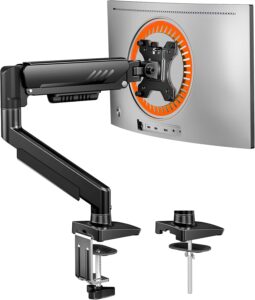
ErGear Single Monitor Arm, Fully Ad…
From the brand New Release Ergear Standing Desk ErGear Dual Monitor Mount Ergear Single Monitor Mount…